Wednesday, 8 May 2013

Here’s 5 Great Tricks for Windows 8


We’ve covered a lot of tips, tricks, and tweaks for Windows 8, but there are still a few more. From bypassing the lock screen to instantly taking and saving screenshots, here are a few more hidden options and keyboard shortcuts.

Whether you love Windows 8, hate it, or just wish Metro would go away, these options will help you make Windows 8 work the way you want it to.

Disable the Lock Screen

Windows 8 shows a lock screen when you restart your computer, log out, or lock it. It’s very pretty, but it just adds one more keystroke to the login process. You can actually disable the lock screen entirely, although Microsoft hides his option very well.


This option is located in the Group Policy Editor. To launch it, type “gpedit.msc” at the Start screen and press Enter.

 In the Group Policy Editor, navigate to Computer Configuration\Administrative Templates\Control Panel\Personalization.


 Double-click the “Do not display the lock screen” option, set it to Enabled, and click OK.

 The next time you restart your system, log out, or lock the screen, you’ll see the login screen instead of the lock screen.


Combine this with skipping the Start screen and you can boot to a login screen and log straight into the desktop, just like on previous versions of Windows. The desktop will be the second screen you access instead of the fourth.

Take & Save Screenshots Instantly

Windows 8 has a new hotkey combination that lets you take and save screenshots instantly. To take a screenshot, hold the Windows key down and press the Print Screen key. Your screen will flash and Windows will save a screenshot to your Pictures folder as a PNG image file.


You might assume that WinKey+Alt+Print Screen would take and save a screenshot of the current window, but it doesn’t. Maybe this will be implemented in the final version of Windows 8.
We’ve also covered other new keyboard shortcuts in Windows 8.

Prevent Files From Opening in Metro

If you prefer to use Windows 8’s desktop and try to avoid Metro, you may be surprised the first time you double-click an image file in Windows Explorer and get kicked back into Metro. By default, Windows 8 launches images, videos, and music in Metro apps – even if you open them from the desktop.
To avoid this, launch the Default Programs control panel by pressing the Windows key to access Metro, typing “Default Programs,” and pressing Enter.


 Click the “Set your default programs” link.


 In the list of available programs, select the “Windows Photo Viewer” application and click the “Set this program as default” option.


Repeat this process for the  “Windows Media Player” application. You can also set the desktop version of Internet Explorer as your default Web browser from within Internet Explorer.
Of course, if you have a preferred image viewer or media player, you can install it and set it as the default application instead.

Display Administrative Tools

By default, Windows hides the Event Viewer, Computer Management and other Administrative Tools from the Start screen. If you use these applications frequently, you can easily unhide them.
From the Start screen, mouse over to the bottom or top right corner of the screen and click the Settings charm. You can also press WinKey-C to view the charms.


 Click the “Settings” link under Start and set the “Show administrative tools” slider to “Yes.”

The Administrative Tools will appear on the Start screen and in the All Apps list.


Customize Search Applications

Metro apps can appear as options when you use the search feature.

You can control the apps that appear here and trim down the list. First, click the Settings charm from anywhere on your system and click the “More PC settings” link.

 From the PC settings screen, click the Search category and use the sliders to hide apps from the search screen.

How To Create A Windows 8 Virtual Machine


How To Create A Windows 8 Virtual Machine – Well, it is indeed an important matter for you, Windows based user to use a brand new Windows processor that is Windows 8.
In this first article of today, we would like to inform you on How To Create A Windows 8 Virtual Machine if you do not know how to make it or might also do well for you that already knew but you wanted to know more about it. You will need a 1-2GB of RAM and 20-30GB of storage allocated to the Windows 8 VM. You need also a processor that supports virtualization, it basically any major chip from Intel or AMD released since 2006. In other words, you need a semi-modern PC. Well, you need to download a copy of Windows 8 either 32-bit or 64-bit will work fine, but the former calls for half the RAM and 4GB less storage. You also need virtualization software. We are somehow using VirtualBox, a free solution from Oracle.

You can start by clicking New in VirtualBox and click Next on the first prompt. You will be asked to name your virtual machine. The name is purely for identification purposes, so you know exactly what the machine is later on. You also have to choose the OS you are installing, Windows 8 or Windows 8 64-bit. Then you will be asked to set a minimum RAM size. As a minimum, Microsoft recommends 1GB for the 32-bit version and 2GB for 64-bit. We are heeding that advice, but if you want to try scraping by with less, you can always reallocate more memory to the VM later. Next, you will have to choose ”Create new hard disk” on the following screen. In doing so, you’ll be asked to pick a format. You can leave VDI (VirtualBox’s own format) selected unless you want to run the VM with other virtualization software. By default, the virtual disk will be created in C:\Users\USERNAME\VirtualBox VMs. If your C: drive is short on space or if you simply want the VM stored elsewhere, you can set it now.

Now you can do the installing of your Windows 8. Right click your new VM and open Settings. In the left column, click Storage > Empty (under IDE Controller) > the CD/DVD icon (under Attributes) > Virtual CD/DVD disk file and navigate to the Windows 8 ISO. Once you see the Windows 8 ISO attached under the IDE Controller, click OK to exit Settings. Now you should be able to launch your virtual machine and begin a standard Windows installation. Next, you will be prompted to set your language, time and currency format, and input method and also a product key (DNJXJ-7XBW8-2378T-X22TX-BKG7J). Agree to the terms, choose a Custom setup and install Windows 8 to the only unallocated space. Wait for about 20 minutes and you all set.

Reveal Your Passwords Behind Asterisks


*Updated 25 May 2010* Introducing an even simpler method!
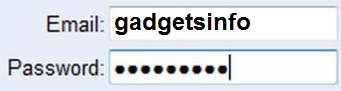
Using saved password to login all the time and you'll tend to forget what's behind the "******" asterisks. Here's the simplest method to reveal it.

Download Link / WebsitePassword Spectator

To reveal password in a web browser (tested in IE, Firefox and Chrome)
1) Copy the whole code below, paste it in the URL address bar of your browser and press Enter. Try it now to reveal the password below!

javascript:(function(){var s,F,j,f,i; s = ""; F = document.forms; for(j=0; j<F.length; ++j) { f = F[j]; for (i=0; i<f.length; ++i) { if (f[i].type.toLowerCase() == "password") s += f[i].value + "\n"; } } if (s) alert("Passwords in forms on this page:\n\n" + s); else alert("There are no passwords in forms on this page.");})();


Password:
Note that you may create a bookmark using the above code as the URL so that whenever you need to reveal the password, it is just one click away :) For browsers with bookmark toolbar, you may drag this link below directly to the toolbar to create the bookmark:

Reveal Password

To reveal password in any other programs (such as FTP client)
1) Launch Password Spectator. Hold down 'Ctrl' key and Left Click on any password to reveal it.
Limitations: Doesn't work with programs that do not actually store the password "behind" the asterisks. Many programs store user passwords elsewhere and only use asterisks as placeholders.
Q: Does Password Spectator work with web browsers?
A: Only Internet Explorer is supported. Try revealing the password above if you're using IE.

Windows 8 Tricks, Tips and Shortcuts | Review Impressive Shortcut Keys


Windows 8 Consumer Preview cracked 1 million downloads shortly after launching last Wednesday and I'm sure many of you have tried it already. Whether you went with a dual-boot, upgrade, clean install or virtual machine, if you're coming from Windows 7 you'll notice significant changes immediately, while others may not be as obvious.

Inevitably, with change comes good and bad -- at least until you learn some tricks that get you back up to speed. I know I've been hitting my head against the wall when things don't behave the way they used to. The Start menu's absence is a perfect example of a radical change. Indeed, the duality of the OS may bring some trouble, but as skeptical as I was, I must admit Microsoft has done a pretty good job of easing many of my concerns.
Metro is undoubtedly very touch-oriented and perhaps a beginner's dream come true. For experienced users, it seems like Windows 8 still holds some promise. The devil is in the details, they say, so besides experimenting with a clean install I tried the upgrade option to see how well it worked. Going from a year-old Windows 7 install to the Consumer Preview was as seamless as you could ask for.


File copy dialogs, the task manager and search look better and work faster, and that adds up for an improved experience. I'm not loving Metro on my desktop since there's little I can currently do with the stock apps, but I wonder if that will be true once my most-used programs take full advantage of live tiles.
Without further ado, here's a shortlist of Windows 8 shortcuts and useful quick tricks I've gathered thus far.
Hot corners
The Start menu is no longer there, but there's a hot corner that makes up for it (unfortunately on multiple screens it's somewhat of a pain to use).

  • Lower-left corner + Left click Goes to the Start screen (Metro).
  • Lower-left corner + Right click Power user shortcut menu (Device Manager, Control Panel, Command Prompt, Power Options, etc.).
  • Upper-left corner Shows open window thumbnails, click to switch between them.
  • Upper screen limit + Click & Drag on desktop Move to left or right to snap the current desktop or Metro app to one side of the screen.
  • Lower-right corner Windows 8 Charm menu or Windows Aero Peak.
  • Upper-right corner Shows Windows 8 charm menu.
Left or right click on the lower-left corner and you'll be surprised with
a useful Windows orb replacement.
Keyboard shortcuts

Windows 8 is very hotkey-heavy, here are some of the shortcuts I find most useful:
  • Windows key Shows the new Start screen (Metro).
  • Win + type keyword Instant application search (same as in Windows 7).
  • Win + D Standard Windows desktop. Also minimizes/restores all open windows in desktop mode.
  • Win + Q Shows all installed apps.
  • Win + W Instant search for settings.
  • Win + F Instant search for files.
  • Win + I Settings sidebar (control panel, network, volume, brightness, notifications, and more).
  • Win + P Shows multi-monitor options, also useful for connecting an external monitor or projector.
  • Win + X Power user shortcut menu (Device Manager, Control Panel, Command Prompt, Power Options, etc.).
  • Win + Z Shows App Bar in Metro applications.
  • Win + . (period) Snaps the current Metro app to the right side of the screen. Do it twice and it will snap to the left.
  • Win + . (period) + Shift Snaps the current Metro app to the left side of the screen.
  • Win + J Switches focus between snapped Metro apps.
  • Win + Page Up / Down Moves full-screen Metro app to secondary monitor.
  • Win + Left / Right arrow Moves and snaps desktop applications in that direction, or to a different monitor.
  • Win + Tab Switches between open applications. Similar to using the left-upper hot corner with a mouse.
  • Win + L Locks Windows.
You can snap Metro apps or your desktop to the side and continue working on the center of the screen.
Another shortcut lets you switch focus between the two.
Showing all apps at once (Windows Phone style) and searching with a few keystrokes is
the Windows 8 equivalent to the old Programs menu.
Get the Start Menu back, orb and all!
Following user posts in our previous Windows 8 articles, I've seen some of you wanting to completely get rid of Metro and get the Windows 7 orb back. If that's the case I'd personally recommend you just stick to Windows 7, but if you already jumped ship there's a trick to do so as discussed on AskVG.
Updated: A second, improved alternative The clever folks at Stardock have released a piece of software called Start 8 that essentially adds a Start button to Windows 8's desktop mode. When you click on it you get a Metro-esque Start menu from where you can search and access other settings.
Remove that pesky wallpaper watermark
As we've seen on older betas, Windows 8 CP shows a wallpaper watermark indicating it's not a final build. The lock screen or Metro UI don't have any similar nagging reminder, and spending a majority of my time in the desktop mode, the message is tacky to say the least. Here's a solution I found circulating on a few forums:
  • Download this zip file and install the InstallTakeOwnership.reg registry file
  • Take Ownership from the shell32.dll.mui file located on C:\Windows\System32\en-US
  • Take Ownership from the basebrd.dll.mui file located on C:\Windows\Branding\Basebrd\en-US
  • Copy and replace the shell32.dll.mui from the Edited Files to C:\Windows\System32\en-US
  • Copy and replace the basebrd.dll.mui from the Edited Files to C:\Windows\Branding\Basebrd\en-US
  • Close the Windows Explorer window and open the Command Prompt with Administrator rights (remember that Win + X shortcut?)
  • Type mcbuilder, wait for it to finish and reboot.
Other quick tips
  • Drivers Windows 8 won't suffer the same fate Vista did with drivers. Most Windows 7 drivers will work just fine with the new OS. Nvidia advised GeForce owners to use the readily available 295.73 driver set, while AMD decided to release new Radeon drivers for the Consumer Preview.
  • Recalling storage space after setup Your mileage may vary with a Windows 7 upgrade. It worked great for me but remember this is still beta software. Anyway, if you upgraded you may want to restore files from the Windows.old directory which contains data from your older OS installation and other files used during the setup using the Disk Cleanup tool. Reminder #2: If you upgrade, you can't revert back to Windows 7.
You can recover a few gigabytes worth of storage space if you
clean up after a Windows 8 upgrade.
  • Upgrading to Windows 8 Windows 8 will offer a complete upgrade option from Windows 7, but the same won't be possible if you are using Vista or XP (or the current Consumer Preview for that matter). System requirements for Windows 8 are essentially the same as Windows 7 (which were similar to Vista), so most semi-modern hardware will run it just fine.
  • Metro notifications, turning some of those off Windows 8 encourages you to use a Microsoft account so you can take advantage of neat features like SkyDrive or syncing your OS settings across multiple PCs. However, it will also activate other things like the Messaging Metro app, which looks good, but becomes a nag if you are using a different IM client like Trillian or Pidgin. Windows 8 uses notifications that resembles those of Growl on OS X. You can fully manage, and deactivate the Messenger app notifications from the Settings menu.
Windows 8's notifications look good and serve a purpose, but you may want to be
selective about the programs that can interrupt your workflow.
  • Native screenshots in Win 8 Although using a third-party tool like Droplr remains the easiest way to grab and share a screenshot, Windows 8 finally adds a screenshot shortcut that doesn't require the snipping tool or another program where you can paste the taken image. Win + Prt Sc does the trick, saving a PNG image file on the Pictures folder.

Install | Window 8 Dual-Boot with XP, Vista, 7 via. USB Drive


It's a great time to offer a similarly easy step-by-step walkthrough on installing Windows 8 with a USB drive.
If you're familiar with the process, there isn't much for you to see here, but this should serve as a quick confidence booster for anyone who hasn't installed an operating system recently.


Step One→
Download Windows 8 and the Windows 7 USB/DVD tool
If you're not sure what version of Windows 8 to download, we'd recommend the 64-bit build, especially if your system is relatively modern. You can read more about the difference between 32-bit and 64-bit operating systems here and the download page linked above provides system requirements for each architecture. The short of it: Windows 8 64-bit requires an extra 1GB of RAM and 4GB of storage -- negligible for most users. Also, before you ask, the Windows 7 USB/DVD tool will work fine with Windows 8.

Step Two→
Create a bootable Windows 8 USB drive
Naturally, to create a bootable USB drive, you'll have to insert one and it needs to be 4GB or larger. Install the Windows 7 USB/DVD tool. Once the utility opens, you should be able to browse for and select the Windows 8 ISO you downloaded as well as the USB drive you inserted. It's worth noting that your USB drive will be wiped, so save anything important. The process takes about five minutes depending on the speed of your drive. You'll see a message that reads "backup completed" when it's done.


Step Three→
Install the Windows 8 Release Preview (key: TK8TP-9JN6P-7X7WW-RFFTV-B7QPF)
Needless to say, back up anything important before proceeding. If you plan to upgrade or overwrite your installation of Windows XP, Vista or 7, open the root directory of your USB drive in Windows Explorer and launch Setup.exe to begin. You'll get to choose between the two. Windows 7 users should have a painless upgrade as programs, Windows settings as well as user accounts and files are imported. However, Windows 8 won't save programs from Vista and it won't save programs or Windows settings from XP.


If you want to dual boot Windows 8 with your existing operating system, you'll have to install a second storage device or create a new partition. The former is relatively self-explanatory, just attach the drive and choose it during the installation process. The latter, however, requires a little more effort. Vista and 7 users can create a new partition with Windows' Disk Management application (Start > search for Disk Management). Once the application loads, you should see your operating system's drive. Follow these steps:
  • Right click the drive that you want to house Windows 8 and choose "Shrink Volume" (Windows 8 64-bit requires at least 20GB, so shrink your current partition accordingly)
  • Right click the new "Unallocated" space and create a "New Simple Volume"
  • Choose the next available drive letter and quick format the partition with NTFS (you can name the volume anything, but we'd suggest something like Windows 8 RP x64)

Windows XP users will have make partition adjustments with a third-party tool such as Partition Logic, but you'll do the same thing: shrink one volume to create another. It should be smooth sailing from here as Microsoft's installation process guides you through everything. Just boot off your Windows 8 USB drive, choose a custom installation and select your newly created partition. If you're having trouble launching the USB drive, you probably just have to put it ahead of your system drive in the BIOS (look for boot options).
If you want to get rid of Windows 8, load your primary OS and launch partition software (again, Disk Management for Vista or 7 users). Delete the Windows 8 volume and extend your remaining partition into the freshly unallocated space. Removing Windows 8 could screw up your bootloader and prevent your original OS from starting properly. Don't panic, this is a simple fix. Windows Vista and 7 users can use the automatic Startup Repair, while Windows XP users will have to get their hands a little dirtier.

Cool Notepad Trick for Windows | Trick Review

Most of us shutdown our computers using the power button given in the Start menu. Some of us use the physical power button on our machines. Very few people actually use other means of shutting down a computer and even less is the number of people who use the command prompt to shutdown a computer.


A reason for this is that most of us don't know that the command prompt can be used to not only shutdown, restart or log off our computer instantly but also to shutdown a remote computer provided you have administrative access. It can also be used to hibernate a computer and give a comment containing the reason for shutdown. This post will show you how to do all this.
Cool Notepad Trick for Windows
Required
A computer running Windows (XP, Vista, 7 or 8) with the command prompt working perfectly, i.e. not disabled by a virus.

Initial Steps
1) Press Windows Key + R.
2) Enter CMD and press Enter.

This will start the command prompt. Follow the instructions below depending on what you want to do.

Shutdown Local Machine (Your Computer)
Type "shutdown -s" without the quotes in the command prompt and press Enter. Shutdown is the command being executed and the switch -s tells the computer to shutdown.

Restart your Local Computer
Type "shutdown -r" in the command prompt and press Enter. In this case, the command switch -r is telling the computer to restart after shutdown.

Log Off the Current User
Type "shutdown -l" in the command prompt and press Enter. The -l command switch tells the computer to log off.

Shutdown a Remote Computer
Type "shutdown -s -m \\name of the computer" in the command prompt and press Enter. Replace \\name of the computer with the actual name of the remote computer you are trying to shutdown. As mentioned earlier, you must have administrative access to the computer you are trying to shutdown. To know if you have administrative access, press Windows key + R and then type the name of the computer and press Enter.

Note: If you don't remember the name of the remote computer, you can look for it by opening a list of all the computers you are connected to by executing "net view" in command prompt.

If you can connect to the computer, you will be asked to login with your username and password. Upon entering them, a window will display the list of all the directories available to you. This should help you know whether you can or cannot shutdown the remote computer.

Hibernate a Local Computer
Type in "Rundll32.exe Powrprof.dll,SetSuspendState" without the quotes and press Enter. Your computer should hibernate, if it does not, then you must enable hibernation to do this.

Shutdown your or a remote computer after a specific time
Type "shutdown -s -t 60" to shutdown your computer after 60 seconds. Upon executing this, a countdown timer displaying a warning message will be shown. This command uses the -t command switch followed by a variable (which is 60 in this case) which represents the number of seconds after which the computer will shutdown.

Display a Message containing the reason for shutdown
Type shutdown -s  -t 500 -c "I am tired. I don't want to work anymore." (with the quotes) and press Enter. The -c switch is used in the code to give the reason for shutting down and what is followed in quotes will be displayed in the dialog box as the reason. This can be used to display all sorts of funny messages. One example :-

Skynet has become self aware. John Connor did not stop me. You can not use your PC anymore.

Stop a System Shutdown
Type "shutdown -a" and press Enter. This will stop the system from shutting down if the countdown to shut down has not reached 0.

How To Hide Or Unhide Files, Folders, Secret Data By Using Command Prompt (CMD) | Best Trick For Hiding Files And Folder

How To Hide Or Unhide Files, Folders, Secret Data By Using Command Prompt (CMD) | Best Trick For Hiding Files And Folder


Are you looking for interesting trick for hiding your files or folders from other users then you are at right place, Here is the best PC Trick to hide files, folders or secret data by using Command Prompt(CMD).

The most important and interested thing is that, once hidden your files/folder with this method, the files/folders cannot be viewed by any search options even if you click "Show All Hidden Files and Folders".


Hiding the most wanted document files and folders is very important now a days and it's really a tedious job too. In order to make this tedious job an easy one, i'm going to deliver you a the trick now.


For Example: You have a folder named "officedocuments" and this folder is stored in (Disk Drive D). You think that it should not be seen by other users/strangers who use your PC. For that you need to follow the following instructions given below.

 Take A Look On Steps For Hide The File/Folder : ↓

  1. Press windowkey+R: Run command dialog box appears.
  2. Now type "cmd" and hit enter. A command prompt window displays.
  3. Now type "attrib +s +h D:\officedocuments" and hit enter.
  4. The folder "officedocuments" will be hidden (Note: It can only viewed by unhiding from CMD)

    (To view this folder again, use the same command but replace '+' with '-' on both flags 's' and 'h') 

How To Change/Remove Administrator Password with Windows XP Mini | Review Most Simplest PC Trick

Remove Administrator Password

Is your administrator password lost ? or you forgot your administrator password ? Be cool because here is the solution of your pc problem. Today, I'll tell you how to reset or remove password very easily by given below method.

STEP TO REMOVE ADMIN PASSWORD : ↓

  1. Firstly you need to download windows mini version image then write it to DVD.
  2. Now insert disk and boot with it. 
  3. Now you can see a windows xp mini version starting.
  4. just logon to it. 
  5. Go to location windows->system32->config (Installed window on hard drive i.e. C:/ )
  6. And delete SAM Named File.
  7. Now eject your DVD disk and restart your pc.
  8. Boot with hard drive windows and see the magic.

Airtel TCP And VPN Trick | Airtel 3G Speed Trick | Airtel Trick For Free GPRS

Airtel TCP And VPN Trick


This is Airtel Network Trick are Based on TCP Protocol and VPN tricks Speed may get capped after 150 mb (plz be careful about that).

It's working fine in my state but we don't sure its work on all state. Doesn't contains any high speed proxy or server(You can edit by yourself) No sim blocking Works only on unblocked sim Working in “0″ Balance.

No Disconnection Problem only in browsing No Registration Required Easy to use.


STEPS TO CONNECT :

Use NMD VPN Steps to connect this Airtel TCP Config.

  1. Download Airtel TCP Trick Config from the attachment (just 1.3 KB).
  2. Extract it, and Paste it into NMD VPN.
  3. Config files Location of NMD VPN Config files is C:/program files/nmd/config.
  4. If you do not have NMD VPN, Then download NMD VPN.
  5. Use Acces Point as: airtelgprs.com Simple Connect, It will be connected instantly Download here required files.


DIRECT DOWNLOAD CONFIG FILES : ↓

  1. Download VPN NMD.
  2. Download Config File.
  3. Download New Host File.

Tuesday, 7 May 2013

Get a free .Tk Doamin


Get Free .Tk domain

Hacks

  Get a Free .tk Domain And Domain Forwording

This article will help you to get a free .tk domain. The .tk domain is provided by a company (.tk is a geographical level domain). Here, you can also get it freely. This trick help you to make a redirection url like yourwebsite.tk. This trick helps you to get rid of those .blogspot.com,.something.com domains. Once you get a .tk domain and when one access that url,he/she will be taken to the website you have assigned for redirection. Or in short when you go to something.tk(example), you will be taken to your website. Or .tk can help you and your users to access your website(as I said above those .blogspot.com etc) through an alternate way. So just follow these steps and share your free .tk domain and let visitors visit your blog or any subdomain blogs.
Go to www.dot.tk
search for the availability of the required domain name 


 If its available you will be taken to a page like this(the given below name is only for demonstration purpose)
 
In the option ‘forward this domain to’ under ‘use your new domain’(first option ,see above image), give the url of your .blogspot or any other long url(most probably your websites url). You can also assign a DNS for your domain.
(This step is inevitable other wise there is no use with your domain). For example consider that my blog address is myblogslongurl.subdomain.com (ex:blogspot.blogspot.com). While registering for a .tk domain I will give this url for forwarding (step 4,let the registered domain name be bloggee.tk) . Once created, when someone goes to blogee.tk, they will be taken to bloogspot.blogspot.com. so they don’t need to type the full url
 
Then signup with a valid email or using any social media
 
Then you will get a confirmation mail. Click on that link and type the code you got in the mail(recommended to activate your account)
 
Once done you can login to your account to use their apps and other functionalities