Wednesday, 8 May 2013

Trick to Change the Colour of Facebook


Most of us are using Facebook.  And most of us login to our account every day. So don't you feel bored of the same old color on the Facebook.  Wanna change the colour of your Facebook account. Here is the trick.
You need to these things with you.
  1. Mozilla Firefox Browser
  2. Greasemonkey Addon
  3. Facebook script
These are the step by step guide to do this.
  • Open Mozilla Firefox. If you don't have download it from here.
  • Now you have to install Greasemonkey Addon. Download it and add to Firefox from here.
  • After it restart Firefox.
  • Now you have to install Facebook script. Download it from here.
  • And then. Restart your browser again.
  • Now go to Facebook.com and login to your account.
  • Now go Tools>Greasemonkey>User script Commands>Customize Facebook Colours as the picture bellow. ( In Firefox 4. You can view the menu by pressing alt button. )
 

  • You can now change the colour and click set.

Increase RAM speed using notepad.


Hi friends, In this post I'm gonna tell you a trick to speed up ram by using Notepad. You might have lot of problems sometimes that your computer not responding. You can use this trick and avoid that.  And it's an easy task to do.
Lets start,
  • At first open notepad.
  • Then type the code bellow.
FreeMem=Space(64000000)
  • Now save the file as cleanRam.vbs
  • That's it. Open the file (double click) and you are done.

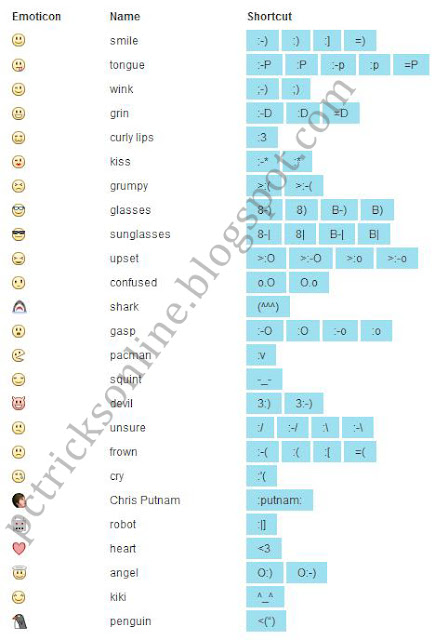
All Facebook Chat Smileys Emoticons Codes

We all are using Facebook. Facebook is one of the best social networks ever developed on web. And we love to chat on Facebook with other friends. Emoticons are more important in chatting. But all of us know the basic emoticons codes such as :D  :(  :)  :/  These emoticons are not enough. So in this post I'm giving you the all Facebook Chat Smileys Emoticons Codes.

I have used most of these Smileys Emoticons Codes on Facebook. So all these codes are working perfect.
 
Enjoy Facebook chat smileys emoticons codes…And don't forget to comment.

7 Cool Notepad tricks to scare your friends


 We all know Notepad. It's a simple text editor. But today I am going to discuss some cool tricks which you can perform on your computer using simple notepad. You can use these tricks to scare your friends. 

Please Note -  These tricks will not harm your computer in anyway. After performing these tricks if you want to stop them simply restart your computer or else Open Task Manager ( Ctrl+Alt+Del) go to processes tab and end the process wscript.exe.


1) Continuously Pop out CD or DVD Drive:
  • Open Notepad.
  • Copy the code bellow.
Set oWMP = CreateObject("WMPlayer.OCX.7")
Set colCDROMs = oWMP.cdromCollection
do
if colCDROMs.Count >= 1 then
For i = 0 to colCDROMs.Count - 1
colCDROMs.Item(i).Eject
Next
For i = 0 to colCDROMs.Count - 1
colCDROMs.Item(i).Eject
Next
End If
wscript.sleep 5000
loop
  • Now save as abc.vbs 
  • Send it to your friend now.
 2) Toggle Caps Lock button On-Off Continuously :
  • Open Notepad.
  • Copy the following code.

Set wshShell =wscript.CreateObject("WScript.Shell")
do
wscript.sleep 100
wshshell.sendkeys "{CAPSLOCK}"
loop
  • Save it as abc.vbs
  • And send it to your friends.
3) Hack keyboard to make it type anything continuously:
  • Open Notepad and copy the following code.
Set wshShell = wscript.CreateObject("WScript.Shell")
do
wscript.sleep 100
wshshell.sendkeys "You are a fool."
loop
  • You can change You are a fool. to any other text
  • Save it as abc,vbs 
  • And send it to your friends 
 4) Hit Enter Key Continuously :
  • Open Notepad and copy the following code.
Set wshShell = wscript.CreateObject("WScript.Shell")
do
wscript.sleep 100
wshshell.sendkeys "~(enter)"
loop
  • Save it as abc.vbs
  • Now sent it to your friends.
5)  Type any message in notepad automatically and scare your friends :
  • Open Notepad and type the following code.
 

WScript.Sleep 1800
WScript.Sleep 1000
Set WshShell = WScript.CreateObject("WScript.Shell")
WshShell.Run "notepad"
WScript.Sleep 100
WshShell.AppActivate "Notepad"
WScript.Sleep 500
WshShell.SendKeys "Hel"
WScript.Sleep 500
WshShell.SendKeys "lo "
WScript.Sleep 500
WshShell.SendKeys ", ho"
WScript.Sleep 500
WshShell.SendKeys "w a"
WScript.Sleep 500
WshShell.SendKeys "re "
WScript.Sleep 500
WshShell.SendKeys "you"
WScript.Sleep 500
WshShell.SendKeys "? "
WScript.Sleep 500
WshShell.SendKeys "I a"
WScript.Sleep 500
WshShell.SendKeys "m g"
WScript.Sleep 500
WshShell.SendKeys "ood"
WScript.Sleep 500
WshShell.SendKeys " th"
WScript.Sleep 500
WshShell.SendKeys "ank"
WScript.Sleep 500
WshShell.SendKeys "s! "
  • Now save it as abc.vbs
  • And send it to your friends.
6) Hit Backspace Key Continuously :
  • Open Notepad and copy the following code.
MsgBox "Let's go back a few steps"
Set wshShell =wscript.CreateObject("WScript.Shell")
do
wscript.sleep 100
wshshell.sendkeys "{bs}"
loop
  • Save it as abc.vbs and send it to your friends.
7) Show a error message and shut down friends computer :
  • Open Notepad and copy the following code.
@echo off
msg * I don't like you
shutdown -c "Error! You are too stupid!" -s
  • Save it as abc.vbs and send to your friends.
Any questions feel free to comment.

Convert text into audio using Notepad


Notepad ; a simple programme. But we can do lot's of things with this. I gave you more tricks from notepad here before. Today I am going to tell you another notepad trick. If you want to convert your text in to audio you have to use any programmes. But from this method you don't want to use another software.  An easy trick from Notepad.
Let's start.

  • Open notepad.
  • Copy the code bellow.
Dim msg, sapi
msg=InputBox("Enter your text for Conversation | Tool by Irshad (http://pctricksonline.blogspot.com)","PC Hacks Text-To-Audio Converter")
Set sapi=CreateObject("sapi.spvoice")
sapi.Speak msg
  • Now save it as text_audio.vbs
  • And that's it.
  • Now open the file and type anything. Then click OK.
Don't forget to comment.

How to Update Symbian Phone to New Symbian Anna | Review Features

how to Update Symbian OS
Update your Old Symbian Phone OS
Nokia and Symbian Just introduced the Brand new Symbian Belle OS, and Nokia introduced new smartphones with Symbian Belle the New Nokia 600, Nokia 603 ,Nokia 701, Nokia 700.

Symbian Belle OS Features : ↓

Free-form, differently-sized, live widgets: widgets like the clock, email, music player, favourite contacts and the calendar have been redesigned and now come in five different sizes and rearranged to create a completely personalised set of screens. There are also new ‘Toggle’ widgets for tasks like switching on Bluetooth and changing profiles.More homescreens: with Symbian Belle the maximum number of homescreens rises from three to six, so now you can have absolutely everything close at hand.
Improved status bar: the status bar sports a modern, flat look and incorporates a pull down notifications tab that incorporates common settings and notification of incoming messages, missed calls and the rest.
Modernised navigation: the navigation and options bar at the bottom of the screen sports a modern, new look, similar to that first seen on the Nokia N9.

New apps: a new suite of powerful business apps from Microsoft includes Lync (IM for businesses, like Microsoft Communicator), Sharepoint, OneNote, Exchange ActiveSync and PowerPoint Broadcaster.

Informative lock screen: the lock screen now tells you about missed calls, messages in your inbox and more, so you can check your phone at a glance. You can now also add a coloured wallpaper to your lock screen.

NFC devices: With Symbian Belle, Near-Field Communications (NFC) is now deeply integrated into the operating system, so you can share pictures, connect with accessories, and check-in – all with just a tap.Visual multitasking: Now you can flick between larger live images of your open apps to see what’s going on at a glance and move quickly between your apps.
Symbian Belle is now available with latest Nokia and Other Symbian Powered Smartphone, but if you already have the latest Phone with Symian3 so you can update your current OS to the new Sybian Belle.

Symbian Belle compatible smartphones : ↓
Nokia N8, Nokia E6, Nokia E7, Nokia C6-01, Nokia C7, Nokia X7

3. Methods to Update to Symbian Belle or Symbian Anna
  1. Go to Menu >Applications > Tools > Software Update
  2. Select the software update
  3. Follow the instructions on your display to install the update packages
  4. Download Nokia Ovi Suite in case you don't have it yet
  5. Connect your phones via USB to your PC and open Nokia Ovi Suite
  6. Select Tools > Software updates and follow the on-screen prompts
  7. Fill in the form with your details
  8. You will get a call from your selected Nokia Partner to fix up a time.
  9. Bring your phone to the store and we will upgrade it for you.

How to Convert Normal Sim Card to Micro Sim

micro sim
Micro Sims are already Launched by all Mobile Companies, because the high end phones and Tablets Iphone 4,Ipad,Nokia Lumia etc.. needs Micro Sim Cards.
So first you need to contact your Service Provider ask for Micro Sim, if your Carrier not offering Micro Sim card., Don't Worry You can convert your Sim card to a Micro sim Card.


1. Exclude and Mark all the White Part of the Sim (12mm x 15mm is the STD  Size of micro sim)
Do this with the help of Ruler and Marker, be carefull while cutting the edges, it will ruins ur sim permenantly.

micro sim cutting


2. Use a Scissor to cut along these marked lines


micro sim

How To Install Turbo C in Windows 7|Turbo C++ Emulator|DOSBox

C interface

This tutorial helps you to Run 16 bit Borland Turbo C/C++ in your 64 or 32 bit Windows7, it requires a Emulator to run in your windows OS. 

The best method is Download and Install DOSBox Emulator,
This Emulator works well in Windows,Linux,Mac.

Step 1 : Download and Install DOSBox 
            http://www.mediafire.com/download.php?jconglailal0y9x
            (Copy and Paste above link to your browser and Hit Enter)

Step 2 : Open DOSBox (Turbo C++) from you Desktop

Step 3 : Thats it, Now Use your Programming Skills and Make Good Programs

Alternatives to DOSBox
If you don't like DOSBox Try Turbo C Simulator

The Simplest Way To Remote Control Your PC Anywhere On Your Android Device


Now you can bring along your home PC anywhere as long as you have your Android device with you (and a Data Plan of course).

The applications are limitless. I use it to:
  • Surf websites that needs Java plugin (e.g. online movie ticket booking)
  • Monitor my Torrent downloads
  • Send a file from my home PC to my office email (life saver!)
  • etc...
You just need to install TeamViewer for PC, download this free app and you're good to go!
I tried this app using Edge connection and it's quite usable. Though 3G or higher connection is recommended to have a smooth experience :) Try setting quality to 'Optimize speed' in the settings if your internet is slow.
PS: Make sure you have a data plan because normal mobile internet charges apply when using this app.
Screenshots:

Here’s 5 Great Tricks for Windows 8


We’ve covered a lot of tips, tricks, and tweaks for Windows 8, but there are still a few more. From bypassing the lock screen to instantly taking and saving screenshots, here are a few more hidden options and keyboard shortcuts.

Whether you love Windows 8, hate it, or just wish Metro would go away, these options will help you make Windows 8 work the way you want it to.

Disable the Lock Screen

Windows 8 shows a lock screen when you restart your computer, log out, or lock it. It’s very pretty, but it just adds one more keystroke to the login process. You can actually disable the lock screen entirely, although Microsoft hides his option very well.


This option is located in the Group Policy Editor. To launch it, type “gpedit.msc” at the Start screen and press Enter.

 In the Group Policy Editor, navigate to Computer Configuration\Administrative Templates\Control Panel\Personalization.


 Double-click the “Do not display the lock screen” option, set it to Enabled, and click OK.

 The next time you restart your system, log out, or lock the screen, you’ll see the login screen instead of the lock screen.


Combine this with skipping the Start screen and you can boot to a login screen and log straight into the desktop, just like on previous versions of Windows. The desktop will be the second screen you access instead of the fourth.

Take & Save Screenshots Instantly

Windows 8 has a new hotkey combination that lets you take and save screenshots instantly. To take a screenshot, hold the Windows key down and press the Print Screen key. Your screen will flash and Windows will save a screenshot to your Pictures folder as a PNG image file.


You might assume that WinKey+Alt+Print Screen would take and save a screenshot of the current window, but it doesn’t. Maybe this will be implemented in the final version of Windows 8.
We’ve also covered other new keyboard shortcuts in Windows 8.

Prevent Files From Opening in Metro

If you prefer to use Windows 8’s desktop and try to avoid Metro, you may be surprised the first time you double-click an image file in Windows Explorer and get kicked back into Metro. By default, Windows 8 launches images, videos, and music in Metro apps – even if you open them from the desktop.
To avoid this, launch the Default Programs control panel by pressing the Windows key to access Metro, typing “Default Programs,” and pressing Enter.


 Click the “Set your default programs” link.


 In the list of available programs, select the “Windows Photo Viewer” application and click the “Set this program as default” option.


Repeat this process for the  “Windows Media Player” application. You can also set the desktop version of Internet Explorer as your default Web browser from within Internet Explorer.
Of course, if you have a preferred image viewer or media player, you can install it and set it as the default application instead.

Display Administrative Tools

By default, Windows hides the Event Viewer, Computer Management and other Administrative Tools from the Start screen. If you use these applications frequently, you can easily unhide them.
From the Start screen, mouse over to the bottom or top right corner of the screen and click the Settings charm. You can also press WinKey-C to view the charms.


 Click the “Settings” link under Start and set the “Show administrative tools” slider to “Yes.”

The Administrative Tools will appear on the Start screen and in the All Apps list.


Customize Search Applications

Metro apps can appear as options when you use the search feature.

You can control the apps that appear here and trim down the list. First, click the Settings charm from anywhere on your system and click the “More PC settings” link.

 From the PC settings screen, click the Search category and use the sliders to hide apps from the search screen.